If you opened Lightroom recently, saw the June 2026 update pop-up, and hit “Remind Me Later” out of deep-seated trust issues with software updates… I get it. We’ve all been burned by an update that broke our favorite preset or moved a button to a random dimension.
But as your unofficial editing coach, I’m giving you the green light: go update right now.

Adobe actually listened this time. Instead of giving us tools we’ll use once a year, this release tackles the daily stuff—the clutter, the slow processing, and the hair-pulling pain of zoom-checking 40 variations of the same frame.
Here is what’s new in the June 2026 release, broken down into what actually matters for your day-to-day workflow (and how to use it).
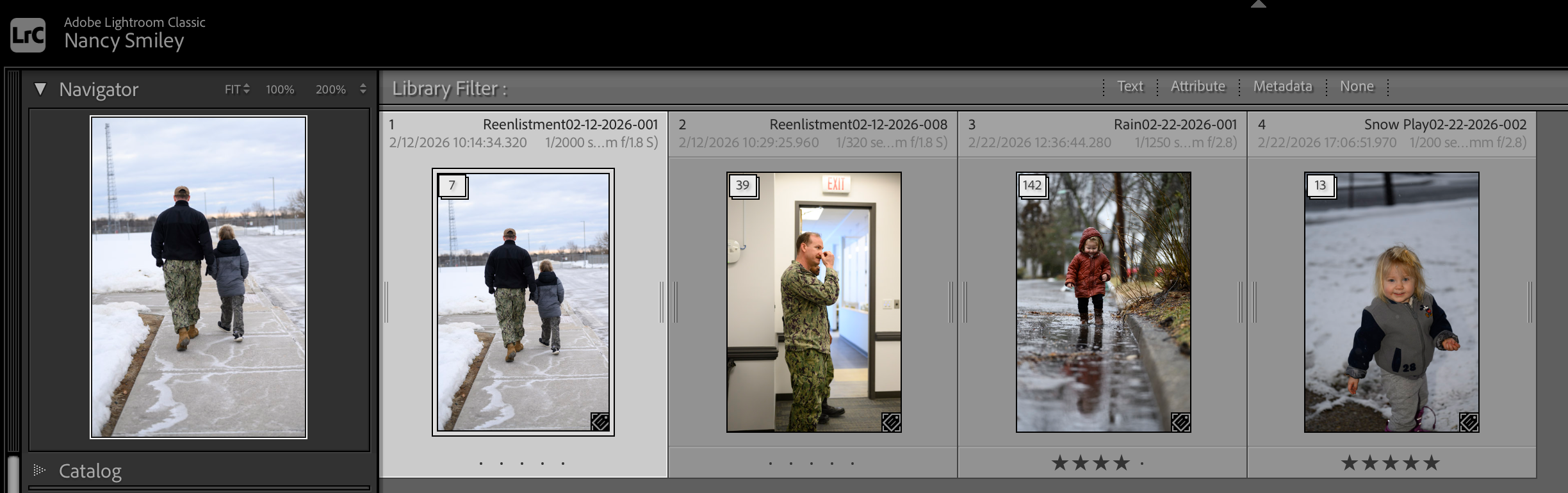
1. Duplicate Detection: RIP to Your Accidental Hoarding
The TL;DR: Lightroom can now automatically find duplicate photos in your catalog—even if you renamed them—and group them together so you can delete them.
Let’s be honest: at some point, you’ve imported the same memory card twice, or saved three versions of the exact same export in two different folders "just in case."
Instead of downloading sketchy third-party apps or ignoring the 4,000 extra files holding your hard drive hostage, Lightroom’s new Duplicate Detection does the dirty work. It scans your catalog, flags exact matches, and stacks them up so you can clean house in three clicks.
Why you’ll love it: Your hard drive gets its life back, and your catalog stops lagging like a tired toddler.
Pro Tip: Want to take your organization even further? Check out my guide on choosing your perfect folder system for organization or dive into 6 tips for organizing photos in Lrc to get your library in tip-top shape.

🎁 FREE DOWNLOAD: Lightroom Classic Photo Management Mini-Guide
Getting your catalog organized doesn't have to be overwhelming. Grab my free mini-guide to get actionable lessons on 5 key areas to simplify your photo organization, plus the exact keyboard shortcuts I use for an efficient process!
👉 Click here to download the Mini-Guide!
2. Cleaner Hair Masking with Select Subject

Hair Selection
Remember back in the day when masking hair meant spending twenty minutes brush-refining, only for your client to still look like they had a slight, glowing alien aura?
The updated AI model in this release is so much better at reading messy hair, fluffy sweaters, and busy backgrounds. It hugs fine edges naturally on the first try, which means way fewer manual tweaks when you're trying to pop a subject out from a background.
Why you’ll love it: You can do quick, dramatic subject lifts without worrying about the dreaded halo effect.
Need more editing power moves? Once you’ve nailed your mask, read up on 5 post-processing power moves or brush up on 3 ways to use the tone curve to make your subject pop even more.
3. Faster AI Denoise (Mac Users, Rejoice!)
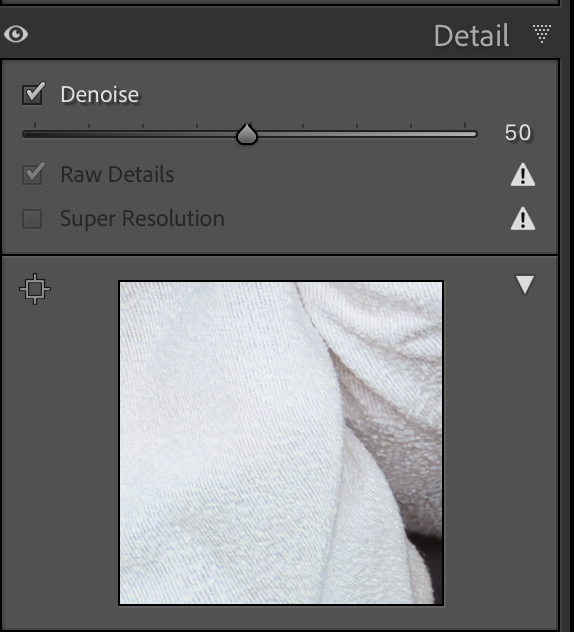

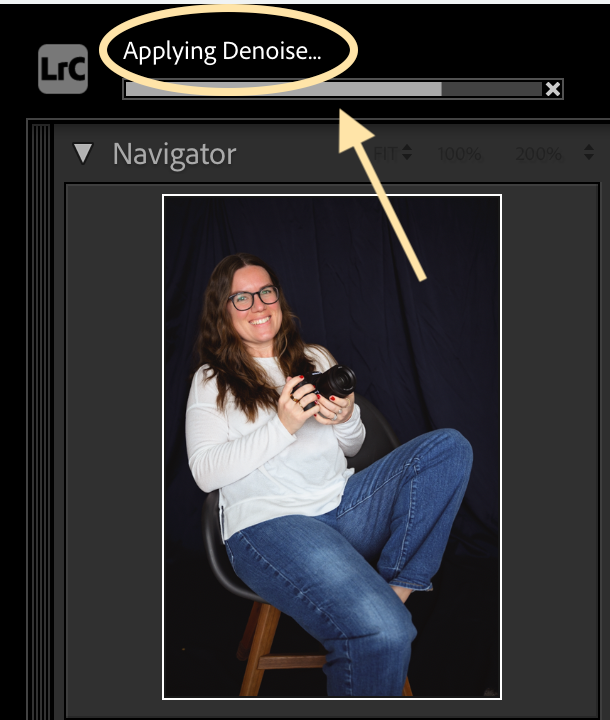
The TL;DR: If you’re editing on a Mac, AI Denoise just got a massive speed bump.
If you shoot low-light receptions, moody indoor sessions, or high-ISO golden hours, you know the drill: click Denoise, wait 45 seconds, watch your laptop fans prepare for takeoff, repeat.
Adobe re-enabled support for the Apple Neural Engine on Mac chips (M1/M2/M3/M4), which basically means Lightroom is finally using your computer's full brainpower to clean up grain. Processing times are drastically faster.
Why you’ll love it: Batch-cleaning grain on a dark reception gallery won't take long enough for you to cook an entire four-course dinner anymore.
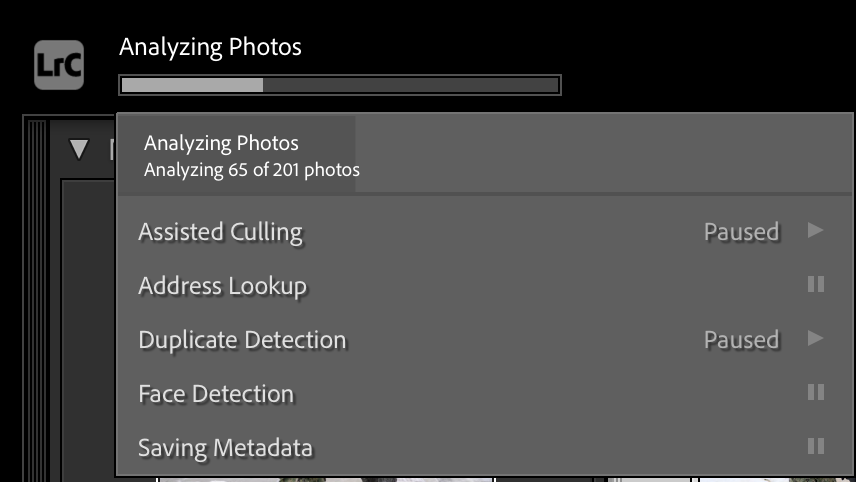
4. Background Process Manager: Stop the Lag
The TL;DR: You can now see (and pause!) all the sneaky background tasks slowing down your editing sliders.
Have you ever been dragging a exposure slider and thought, “Why is my computer acting like it’s running on a dial-up connection right now?!”
Usually, it’s because Lightroom decided that right now—in the middle of your rush edit—is the perfect time to search for faces, sync 500 previews to the cloud, and re-index your entire library. The new Background Activity Manager sits neatly in the interface, showing you what’s running and letting you hit a giant "Pause All" button when you need 100% of your computer's speed focused on editing.
Why you’ll love it: Total control over your computer's performance when you just need to get through a session fast.
Related Read: If Lightroom speed is constant friction for you, check if you're making any of these 10 Lightroom Mistakes That Are Holding Back Your Photography.
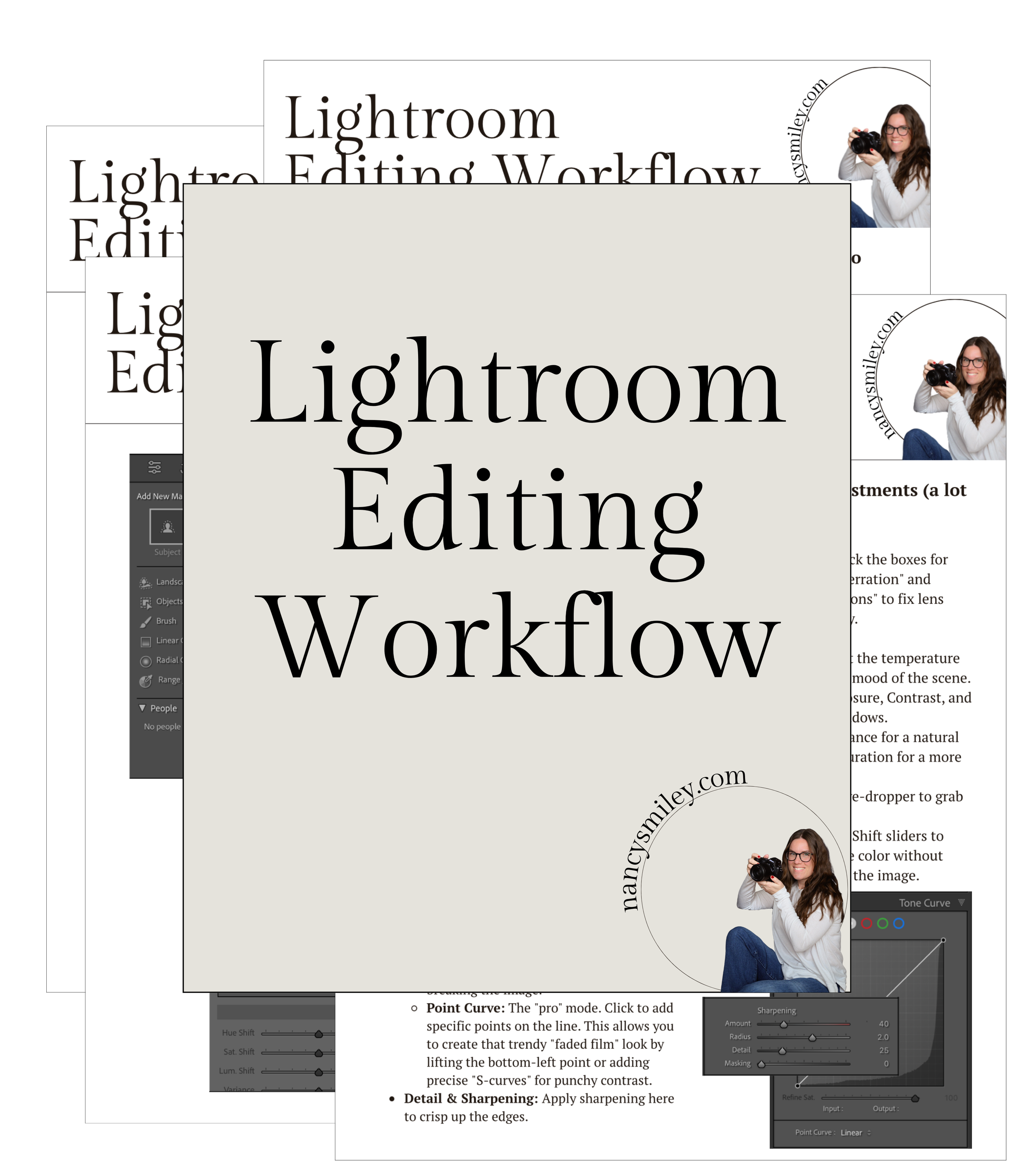
⚡️ FREE DOWNLOAD: Lightroom Editing Workflow
Want a step-by-step breakdown so you're not fumbling around and guessing with your edits? Download my free workflow guide to streamline every photo you edit from start to finish!
👉 Click here to download the Lightroom Editing Workflow!
5. Keyword Syncing to the Cloud
The TL;DR: Your keywords now sync seamlessly across desktop, iPad, and mobile.
If you like to organize on your desktop but cull or tag on your iPad on the couch, this one’s for you. Keyword syncing used to be a little finicky across devices, but now your tags carry over seamlessly everywhere you view your images.
Why you’ll love it: Seamless organization whether you're working at your desk or checking files on your phone between errands.
Confused by the app ecosystem? If you're still trying to figure out which version fits your lifestyle best, read my full breakdown on Which Lightroom Is Actually For You? Cloud vs. Classic.
Final Verdict: Is It Worth the Click?
100% yes. Back up your current catalog (as always, don't play hero!), hit update, and enjoy an editing session that feels just a little bit smoother.
100% yes. Back up your current catalog (as always, don't play hero!), hit update, and enjoy an editing session that feels just a little bit smoother.
If you're completely new to the program or feel like you're missing basic foundation steps, start with my Getting Started in Lrc Beginner Guide before jumping straight into the updates!

Search the blog for more helpful info! 👇
Needing to dive deeper? Check out…
The Camera Series— for mastering your gear.
The Lightroom Series— for editing.
AI-Powered Hail Mary Masks— for lightning fast, unmatched editing tools.
The Camera Series— for comprehensive, affordable trainings designed for beginner or intermediate photographers.
Nancy’s Recommended Gear— and where she buys it used (reputable with warranties!)