Which Lightroom is Actually for You? Cloud vs. Classic
If you own a camera and have a computer, you have almost certainly asked this question. Or worse, you’ve asked the question and received the "correct" official answer, which left you completely confused.
For years, the branding choices for Adobe's photo ecosystem have been confusing. We have Lightroom Classic, which is anything but an aging "classic", and we have Lightroom (sometimes called Lightroom Cloud or CC), which implies it is the only version.
This naming often leads new users to two incorrect conclusions:
That Lightroom Classic (LrC) is an older, legacy software that Adobe is preparing to kill.
That Lightroom (Lr) (Cloud) is the "modern," simplified version everyone should be using.
Let's clear the air immediately: These are both modern, sophisticated, professional programs receiving identical core updates. They just represent two fundamentally different philosophies of photography.
Are you a "set it and forget it" mobile publisher who values efficiency, or are you an archiving powerhouse who needs granular control over 200,000 files across multiple hard drives? The answer to that determines which Lightroom is "better" for you.
To help you decide, let's dive deep into the real-world differences, from subtle develop module tools to the absolute logistics that define your workflow.
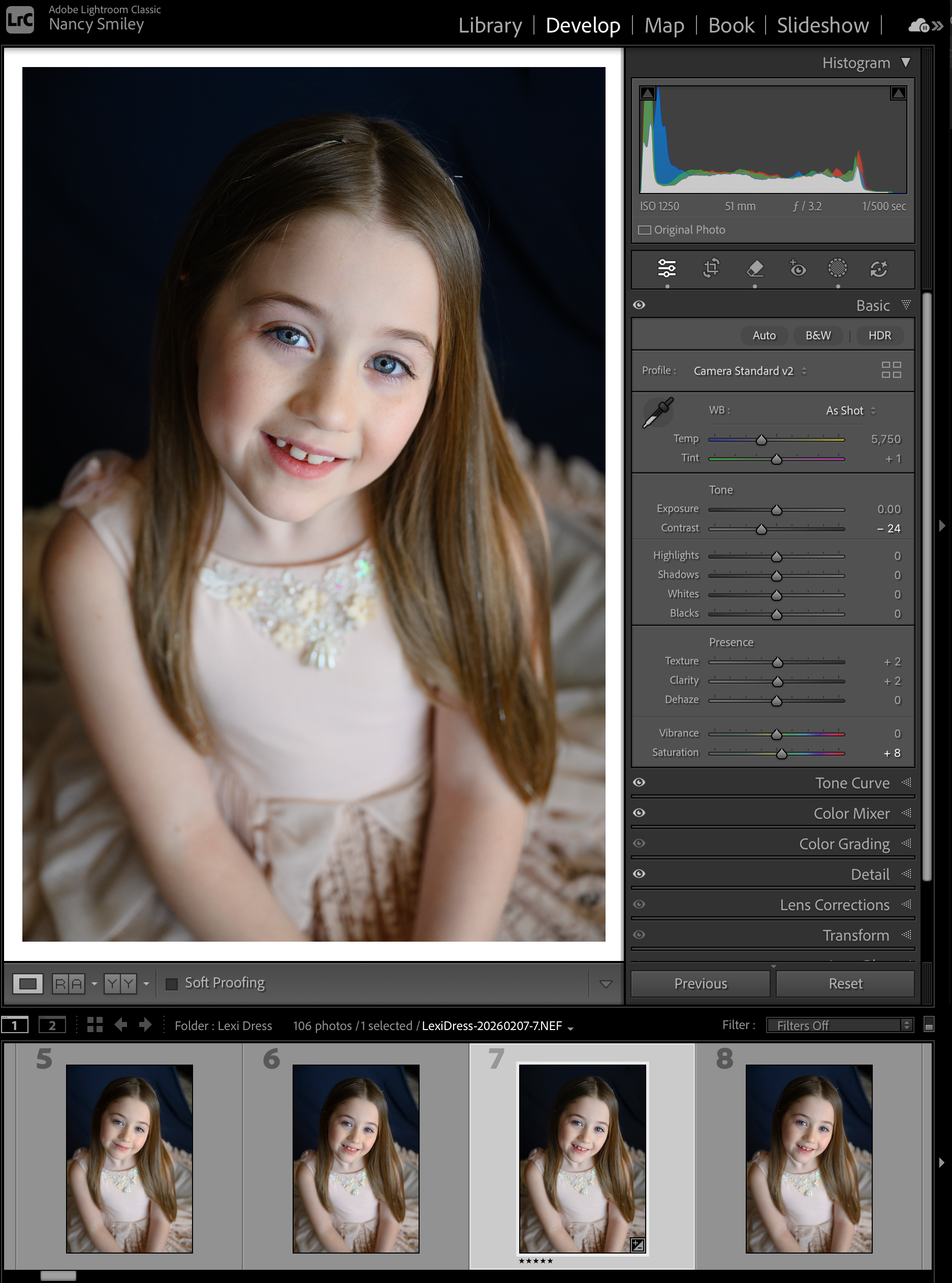
1. The Develop Module (Editing):
This is where the most dangerous myth lives: that "Classic" runs on old code. Let's debunk it. The actual raw editing engine—Adobe Camera Raw—is identical in both programs. When Adobe releases massive updates, like Generative Remove or Denoise AI, those features typically hit both platforms simultaneously. The real differences in the Develop module are not in image quality, but in professional-grade utility. Cloud focuses on simplicity, while Classic focuses on precision.
The Nuanced Develop Module Gaps:
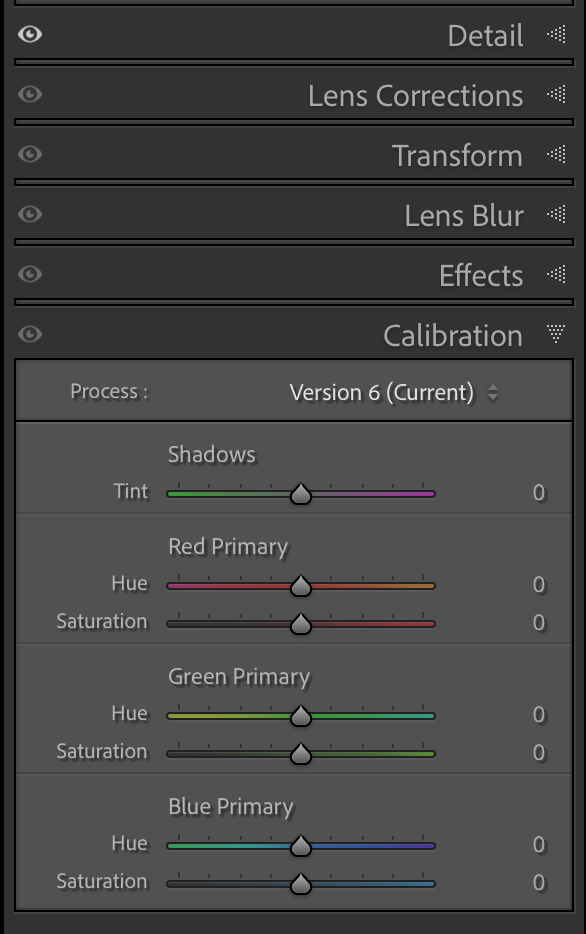
Calibration Panel: This is a key tool in my own workflow. The Calibration panel, located at the very bottom of Lightroom Classic, allows you to shift the base hues of the Red, Green, and Blue primary channels. Many professional presets rely on this precise control to get unique color looks. This panel is completely missing in Lightroom Cloud.
Manual Defringing & Lens Corrections: Lightroom Cloud relies almost entirely on automated lens profiles. While Lr (Cloud) does have a "Defringe" slider, it lacks the detailed, eyedropper-precision "Manual" tab found in Classic that allows you to sample specific fringing colors. If you shoot challenging scenarios that profile corrections can't fix, Classic is mandatory.
Soft Proofing: Soft Proofing allows you to see how your image will look after you export. Ever had colors go weird once you look at them on Instagram? Yeah, soft proofing solves this. Lr (Cloud) has zero soft proofing capability. For an in-depth look, see my post: What is Soft Proofing in Lightroom and Should You Do It?.
The History Panel: If you make 300 slider moves, Lightroom Classic tracks every single one in a searchable list. Lr (Cloud) only uses "Versions" (save points). While you can create specific manual "Versions" (e.g., "Color" and "B&W"), you lose the linear undo functionality when you leave your editing session.
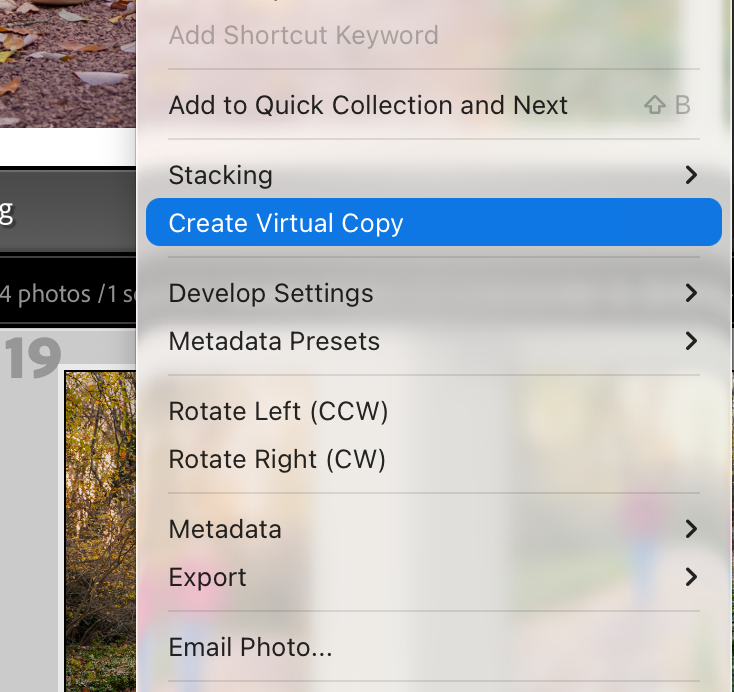
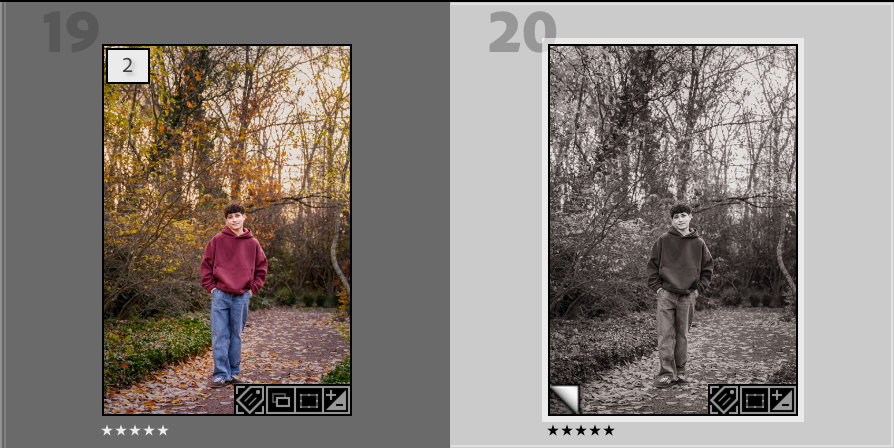
Virtual Copies vs. Versions: Classic allows you to create Virtual Copies, which act as a second thumbnail in your main grid. You can view two completely different edits of the same image side-by-side. In Lr (Cloud), you must toggle through Versions manually to compare, meaning you lose that side-by-side comparison.
To optimize your post-processing in either version, I strongly recommend mastering the fundamentals first. Grab my free Lightroom Editing Workflow guide to make sure you have a consistent plan.

Mastering either tool requires discipline; don't miss my 10 Lightroom Mistakes That Are Holding Back Your Photographs.
2. Infrastructure: Local Control vs. Cloud Simplicity
This is the biggest hurdle to understand, and it's the defining operational difference between the two versions.
Lightroom Classic (The "Archive" Workflow)
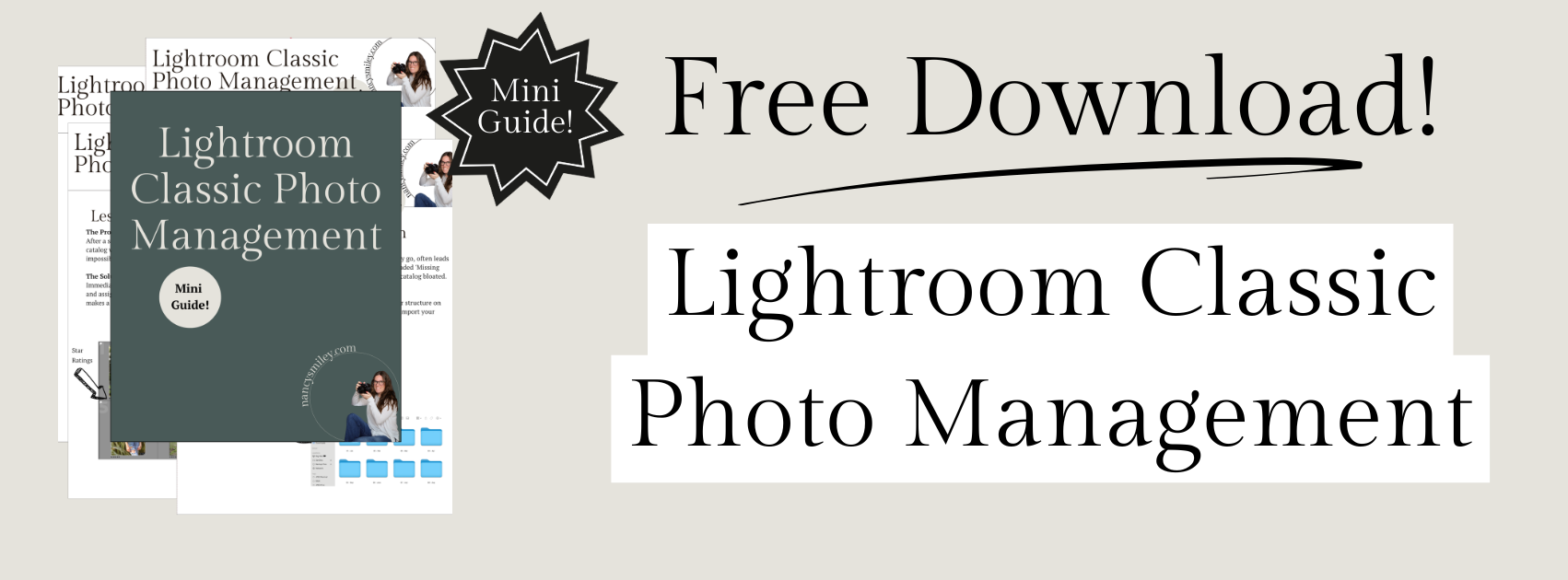
In Lightroom Classic, your files are stored locally on your desktop computers and hard drives. You decide exactly where your images live. LrC uses a single "Catalog" file to track the metadata and edits, but the catalog does not contain the photos. This model is crucial for power users and professional photographers with huge catalogs. (If that’s you, I offer a Free Lightroom Classic Photo Management Mini Guide to help you build the correct catalog foundation.) Because your files live on your local machine, you have zero dependence on internet speed for editing, exporting, or searching metadata. Learn 6 Tips for Organizing Photos in LrC to maximize this workflow.
Lightroom (Cloud) (The "Modern" Workflow)
In the Cloud ecosystem, when you add photos, they are automatically synchronized to Adobe’s cloud storage servers. The master file lives online. The program handles the file path in the background. Your phone, your tablet, your web browser, and your desktop all have immediate, synchronized access to that full-resolution image. This is incredible for mobility. The downside is dependency. If your internet is slow, or you are offline, you may be stuck waiting for a high-res preview to download just to begin a detailed edit.
3. Operations: Import and Export
This logistical friction defines which program feels more intuitive for your daily life.
The Import “Safekeeper”
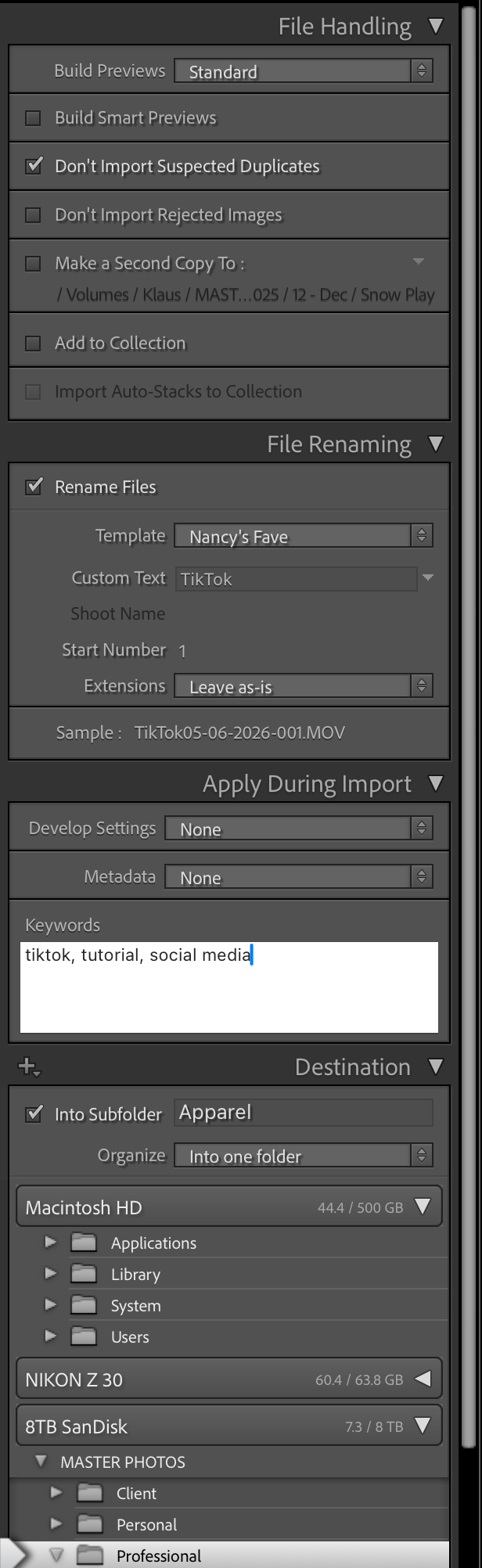
Classic: A highly granular process. You can apply import presets, create specialized metadata templates, automatically rename files (e.g., YYYYMMDD-ShootName-####), and most importantly, make secondary copies to a completely separate backup drive simultaneously. Classic is the safekeeper, ensuring organization before a photo lands in your library.
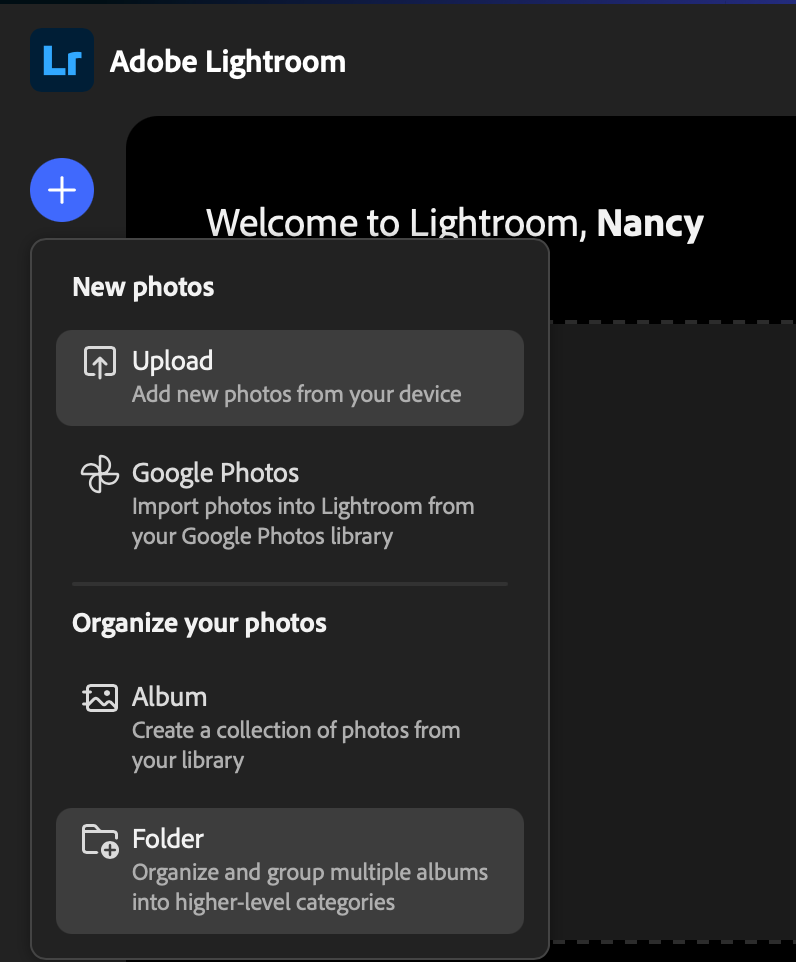
Cloud: It’s a "dump and sync" model. You point to a folder, and it automatically copies them to its local internal storage database and immediately begins uploading them. You have almost no control over file naming or precise folder structure on your hard drive.
The Export Utility
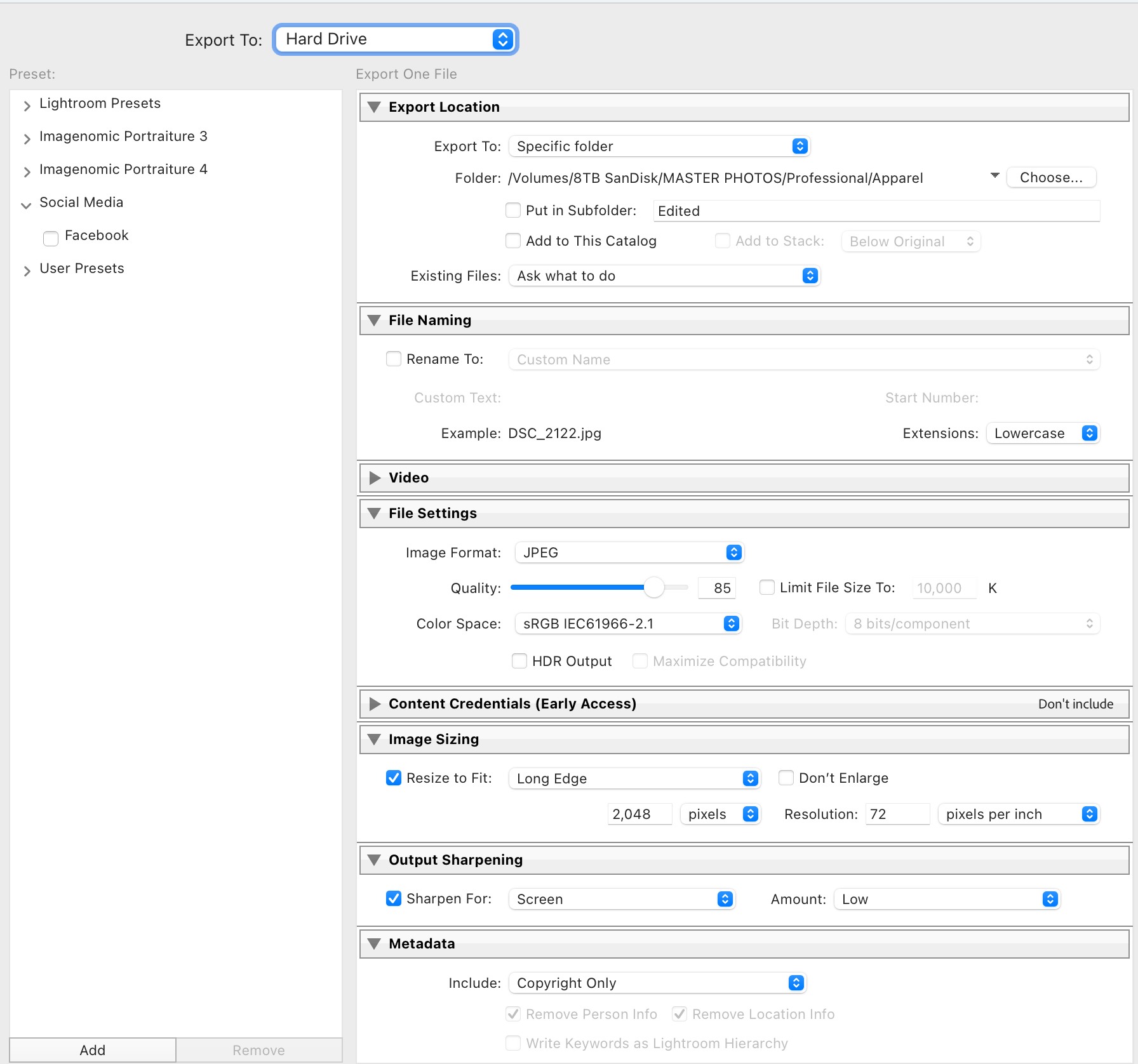
Classic: Highly powerful and precise. You can build complex Export Recipes (e.g., one recipe for 1000px web jpgs, one for full-res prints) that stripping or retaining specific metadata. Critically, LrC supports third-party export plugins (so you can export your images right from LrC to Pixieset or Shootproof).
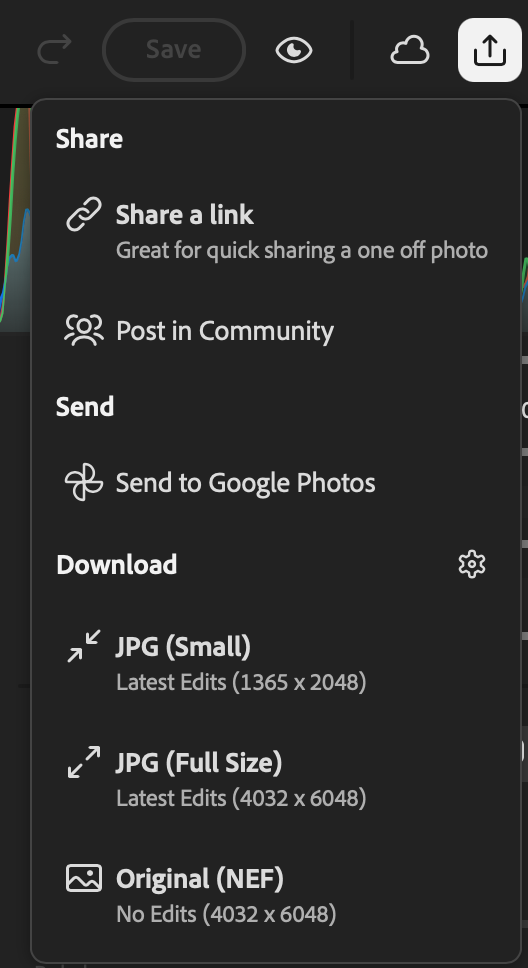
Cloud: Designed for simplicity. It gives you "Small," "Large," and "Custom." Custom allows you to set precise pixel dimensions, but you lose the intricate batch processing and plugin support pros often require. Check out Aspect Ratio: Why Your Prints Keep Getting Cropped to help with export planning.
4. Other Considerations
Offline Access: Classic works anywhere. Lr (Cloud) has limited support for working on images you haven't recently edited (though you can now select a setting to "Store a Copy Locally"). If you travel extensively, understand the differences; I recommend referencing Getting Started in LrC to build a robust local system first.
Metadata Search: Classic relies on manual keywording (crucial for big libraries; see Choosing Your Folder System for Organization). Cloud uses "Adobe Sensei," which is powerful AI that searches the content of the photo. You can search "dog" or "mountain" without ever adding a keyword. While impressive, AI currently lacks the search precision some power users need.
Final Verdict: Which One is Actually for You?
We must debunk the outdated myth again. LrC isn't old. It's a high-performance desktop workstation designed for photographers who value total control. Lr (Cloud) is a streamlined, mobile experience for the modern publishing photographer.
Think of it this way: Lightroom Classic is a Professional Chef's Kitchen. It includes the Map, Book, and Print modules, the most precise calibration tools, soft proofing, full tethering, and a robust import workflow designed to build a secure foolproof backup strategy. This is the workspace of the archive, the studio, and the print lab.
Lightroom (Cloud) is a Smart Convection Oven. It is exceptionally high-tech and fast, seamlessly syncing across multiple devices, and perfect for the modern social media photographer who publishes daily on the go. If that sounds like you, check out 5 signs you’re ready to charge for your photography because Cloud might perfectly fit your professional speed.
The Wildcard Option: The Hybrid Workflow
The best thing about Adobe’s ecosystem is that you don't have to choose a side entirely. Many pros use a Hybrid Workflow. They keep their main archive, catalog, and high-res files managed by Lightroom Classic on their main hard drives. However, they then select specific collections to "Sync with Lightroom Web." This creates "Smart Previews" of those images in the Cloud ecosystem.
This allows them to use the Lightroom iPad or Phone app to make edits at a coffee shop—including robust masking and advanced color tools—while their master, original high-res files stay safely offline. It gives you the best of both worlds. The ideal starting point to understanding both worlds is defining your core approach. Grab my free Lightroom Classic Photo Management Mini Guide or my free Lightroom Editing Workflow Guide, and you will be well on your way to photo management freedom.

Search for more helpful info! 👇
Needing to dive deeper? Check out…
The Camera Series— for mastering your gear.
The Lightroom Series— for editing.
AI-Powered Hail Mary Masks— for lightning fast, unmatched editing tools.
The Camera Series— for comprehensive, affordable trainings designed for beginner or intermediate photographers.
Nancy’s Recommended Gear— and where she buys it used (reputable with warranties!)