The Simple 4-Step Method to Perfect White Balance in Lightroom
Have you ever taken a photo only to find a weird blue, green, or orange color cast when you look at it later? That frustrating shift in color is caused by incorrect White Balance (WB).
White balance is the foundation of a great photograph. It corrects those color casts, ensuring the colors in your image look accurate, natural, and true to life. While I always recommend getting your white balance right in-camera, the reality is that sometimes you miss it.
Luckily, if you shoot in RAW, correcting it in editing is incredibly simple and can be done in four easy steps.

Before You Start: Get Your Editing Roadmap
Fixing your white balance is only the first part of a professional workflow! If you’re not sure what to do next, check out my 6 Essential Lightroom Edits guide.
Step 1: Grab Your White Balance Tool
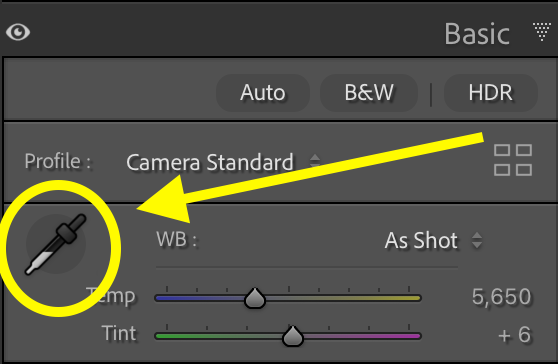
When you open your image in the Develop module of Lightroom Classic (or Adobe Camera Raw), look for the White Balance Eyedropper Tool. It looks like a small dropper icon located just above the temperature and tint sliders in the Basic panel.
Click this tool to activate it. You're ready to find your neutral!
Step 2: Find Your Neutral Area
Your camera needs a point of reference to know what true white or true gray looks like. A "neutral" is any area in your photo that should be pure white, pure black, or middle gray.
In a perfect scenario, you might use:
A gray sidewalk or concrete.
A clean white t-shirt or piece of paper.
The white of a subject's eye (use this with caution, as it can be tricky!).
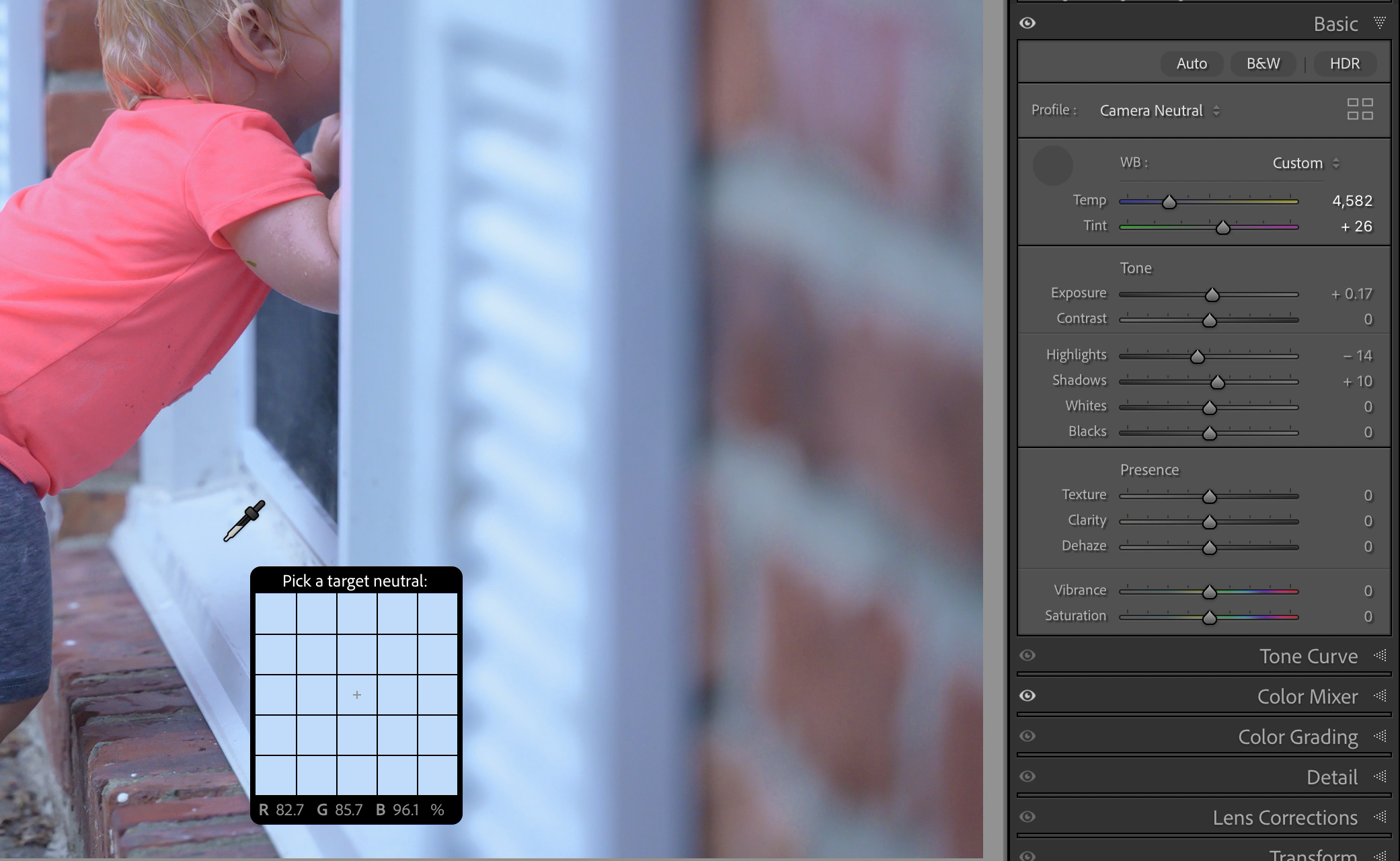
Pro-Tip for Checking: Hover the eyedropper over your chosen neutral. If the white balance is off, the RGB (Red, Green, Blue) numbers in your toolbar won't be equal. When the WB is correct, those numbers will be almost exactly the same!
Step 3: Click on Your Chosen Neutral
This is the magic part! Simply click the eyedropper once on your neutral area. In the video below, you’ll see I use the white window pane (even though it’s blue in this image because of the bad white balance!).
Lightroom instantly analyzes the pixels and automatically adjusts the overall Temperature (blue to yellow) and Tint (green to magenta) to neutralize that spot. Your photo should immediately snap into a much more accurate color representation.
Step 4: Fine-Tune with the Sliders
Once you've done the initial click, you may need to make small, subjective adjustments. This is where you add your creative "flavor."
Temperature Slider: Move it right (toward yellow) if the image still looks too "cold." Move it left (toward blue)if it looks too "warm."
Tint Slider: Move it right (toward magenta) if the image has a slight green cast.
This fine-tuning is especially critical for achieving stunning everyday photos with natural skin tones.
Ready to Master Your Editing?
If you want to move beyond basic fixes and create a repeatable editing system, you're going to love my comprehensive course, Lightroom Unlocked.
We dive deep into the 3 ways to use the tone curve and how to handle tricky lighting, like indoor camera settings.
Click here to enroll and unlock your editing potential today!

Help! What if I Don't Have a Neutral?
Don't panic! This is where Mastering the Kelvin Scale comes in handy, even in post-processing.
Use the Dropdown Menu: Above the Temperature slider, click the White Balance dropdown (usually "As Shot"). Choose a setting that matches your conditions (e.g., "Cloudy" or "Tungsten").
Fine-Tune: After selecting the closest preset, use the sliders (Step 4) to make your final adjustments.
Remember: If you make the switch from JPEG to RAW, you gain significantly more "wiggle room" to fix these issues without losing image quality!
Needing to dive deeper? Check out…
Lightroom Unlocked for editing.
The Ultimate Preset Toolkit for lightning fast, unmatched editing tools.
Mastering Manual Mode for a comprehensive course suitable for beginner or intermediate photographers.
Digital Declutter in Lightroom Classic for photo management and organization.
The Photography Fast Track for a 5 day workshop to get off of AUTO mode.
Nancy’s Recommended Gear and where she buys it used (reputable with warranties!)