Aspect Ratio: Why Your Prints Keep Getting Cropped
Ever find yourself with a photo that looks absolutely perfect on the back of your camera, only to have the print and see that the top or bottom gets chopped off?=?
Or maybe you’ve uploaded a gorgeous landscape to Instagram, only for it to look tiny and "squished" compared to everyone else’s posts?
If that’s happened to you, don’t worry—your camera isn't broken! It’s all down to a little thing called Aspect Ratio. It sounds technical, but I promise it’s simple once you see how it works. In this post, we’re going to clear up the confusion so you can crop with confidence!
What exactly is Aspect Ratio?
Think of aspect ratio as the "shape" of your photo. It’s just the relationship between the width and the height.
Most modern cameras (Nikon, Sony or Canon) shoot in a 3:2 ratio by default. This is a classic, slightly long rectangle that we’ve inherited from the old days of 35mm film.
Pro Tip: This is the same for both Full Frame and "Crop" (APS-C) cameras! Even if the sensor is smaller, the shape of the rectangle stays the same.
The "3:2 vs. 4x6" Mystery
One of the most common questions I get in my Lightroom workshops is: "Should I crop to 3:2 or 4x6?"
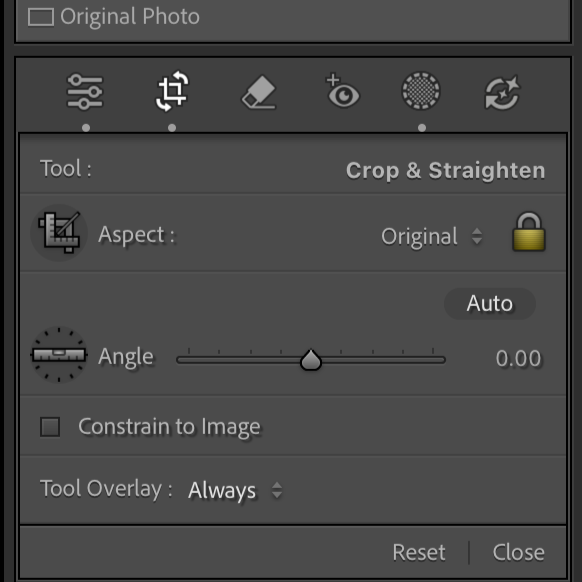
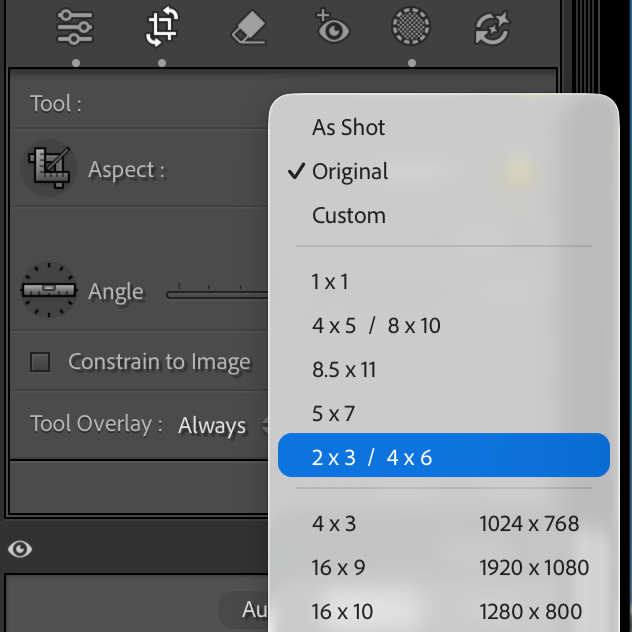
Here’s a secret: They are exactly the same thing! "Three-to-two" is just the math version, and "4x6" is the print version. In Lightroom Classic, you’ll see them grouped together in the crop menu. Whether you call it 3:2, 2:3, or 4x6, the shape doesn’t change.
Why Your 8x10 Prints Look "Wrong"
This is where the headache usually starts. Most of us shoot in that 3:2 shape, but common frames and print sizes often use a 4:5 ratio (like the classic 8x10).
Because an 8x10 is "boxier" than your camera’s sensor, you have to shave off about 16% of your image to make it fit. If you composed your shot too tightly in-camera, that "haircut" can ruin a great portrait!
The "Black Sheep" of Ratios: The 5x7 You’ll also see 5x7 in your Lightroom menu. This is the awkward middle child of the photo world. It’s not quite as long as your sensor’s 3:2, but not as boxy as an 8x10. It requires its own unique crop, which is why it sits all by itself in the menu!

The "Safe Zone": Print Sizes That Fit Perfectly
If you want to print your photos exactly as you composed them in your viewfinder—without losing a single pixel from the edges—you need to stick to the 3:2 ratio family.
Because your camera shoots in a 3:2 shape, any print size where the long side is 1.5x the length of the short side will be a "Perfect Fit."
You can choose these sizes with ZERO cropping:
4 x 6 (The standard small print)
8 x 12 (The "Big Brother" to the 4x6)
10 x 15 (Great for portfolio prints)
12 x 18 (A popular medium poster size)
16 x 24 (Perfect for a statement wall piece)
20 x 30 (Large scale impact)
24 x 36 (The classic movie poster size)
Pro Tip: Next time you’re shopping for frames, look for 8x12 instead of the standard 8x10. It’s a little harder to find at the grocery store, but it means you won't have to cut off a single inch of your hard work!
3 Lightroom "Pro Moves" for Faster Cropping
While you’re in the Lightroom Crop Tool (just hit 'R' on your keyboard!), try these shortcuts:
Press 'X': This instantly flips your crop from horizontal to vertical. No more dragging corners!
Press 'O': This cycles through different overlays (like the Rule of Thirds or the Golden Spiral) to help you find the perfect composition.
Enter Custom: Need to print on standard 8.5x11 paper? Click the ratio name, choose "Enter Custom," and type it in!
My #1 Piece of Advice? Shoot Wide!
The best way to win the aspect ratio game is to give yourself some "breathing room." Since you know you might need an 8x10 for a frame and a 4:5 for Instagram, always shoot just a little bit wider than you think you need to. You can always crop in later, but you can’t add pixels back once they’re gone!
Needing to dive deeper? Check out…
Lightroom Unlocked for editing.
The Ultimate Preset Toolkit for lightning fast, unmatched editing tools.
Mastering Manual Mode for a comprehensive course suitable for beginner or intermediate photographers.
Digital Declutter in Lightroom Classic for photo management and organization.
The Photography Fast Track for a 5 day workshop to get off of AUTO mode.
Nancy’s Recommended Gear and where she buys it used (reputable with warranties!)