Why Your Light Meter Lies to You (And How to Fix It!)
Before we dive into why your camera might be fibbing to you, let’s talk about what that little tool actually is. Every modern digital camera has a built-in light meter. Its only job is to measure the light reflecting off whatever you point your lens at.
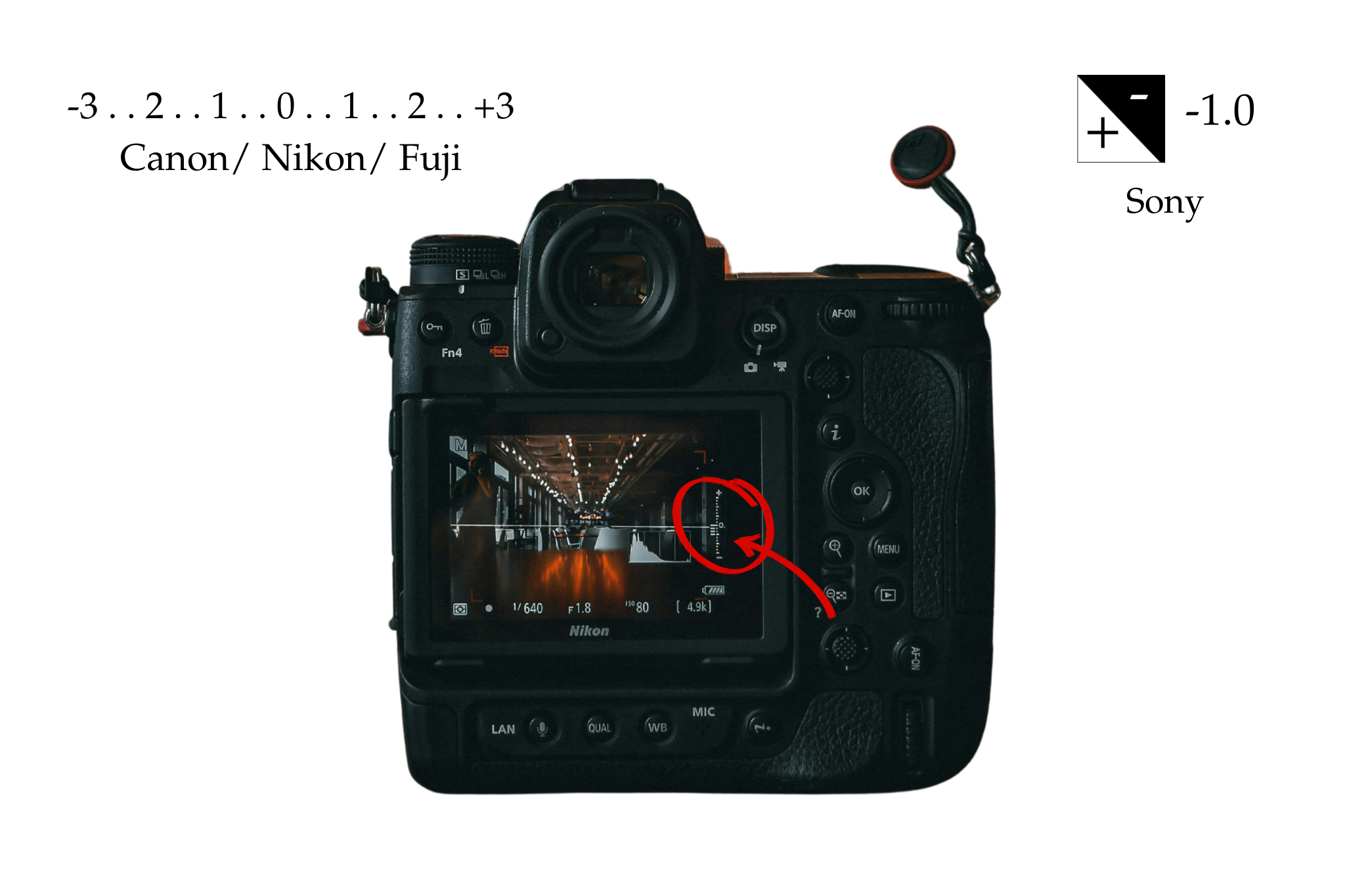
As you adjust your shutter speed, aperture, and ISO, you’ll see a little scale in your viewfinder or on your screen with a moving bar. That bar is your light meter talking to you!
If the bar is in the middle (at 0): Your camera thinks the exposure is "correct."
If the bar is to the left (-): The camera thinks the image will be too dark (underexposed).
If the bar is to the right (+): The camera thinks the image will be too bright (overexposed).
It sounds foolproof, right? But here’s the catch: your light meter isn't actually looking at your subject—it’s just doing a math problem. And like any math-loving machine, it’s looking for a very specific answer.
Your Camera Only Wants Gray
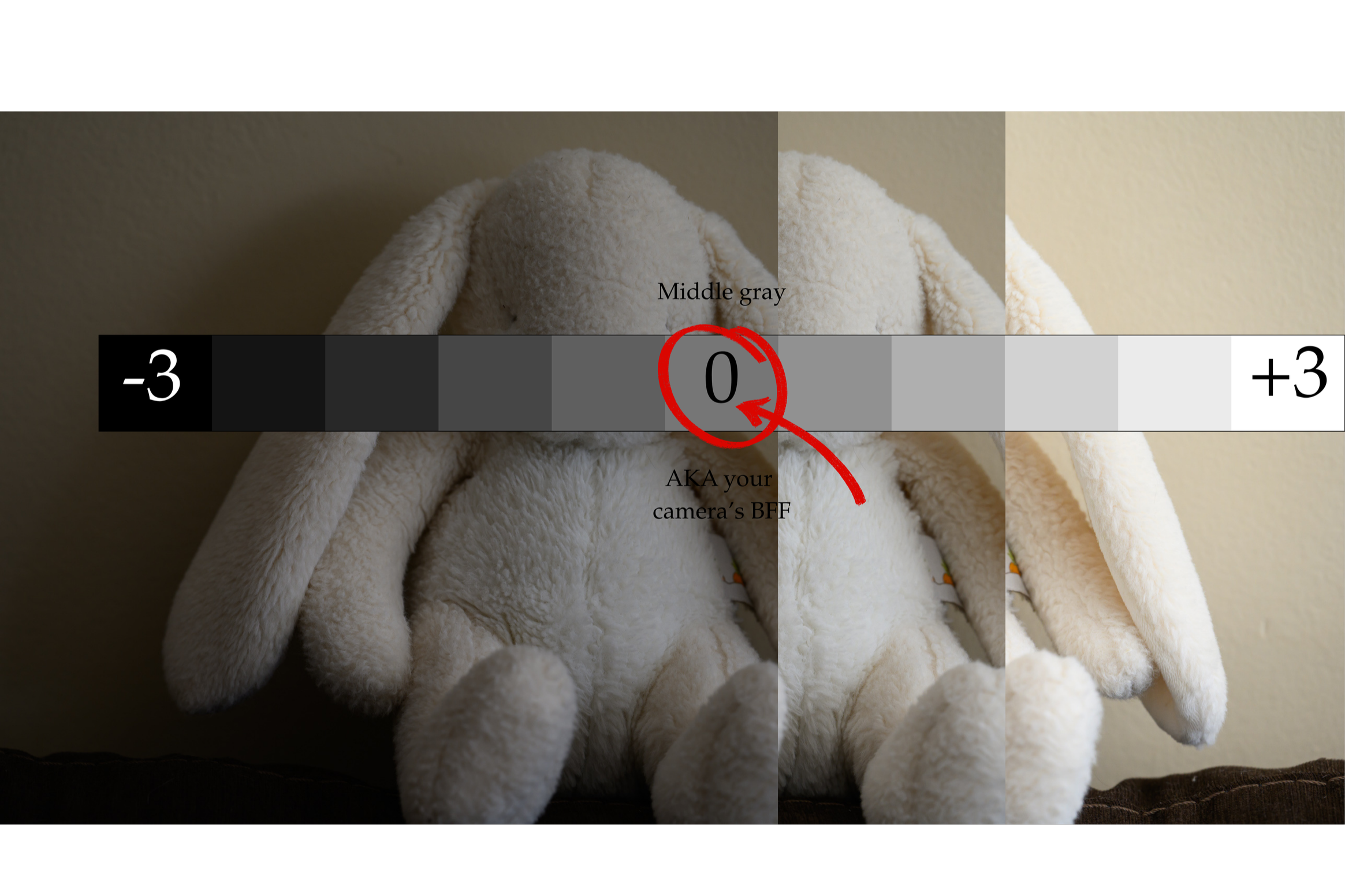
Imagine your camera is a painter, but it only has one favorite color: 18% Gray (also known as middle gray).
Your camera’s light meter doesn't actually "see" subjects. It doesn't know you’re photographing a beautiful bride in a white dress or a black lab in the shadows. All it does is measure the intensity of light reflecting off a surface and then it tries to adjust your settings so that the final image averages out to—you guessed it—middle gray.
If the scene is perfectly balanced with a mix of light and dark, your camera does a great job. But when things get extreme, your camera starts to panic.

When Your Meter Gets Confused
1. The "Snow" Problem (Underexposure) If you’re taking photos in a snowy field, your camera sees all that bright, beautiful white and thinks, "Whoa! Too much light! I need to turn this down to gray." It tells you the exposure is "0," but the result is dingy, gray-looking snow.
The Fix: You actually have to "overexpose" (move that bar toward the +) to keep the snow looking white!
2. The "Little Black Dress" Problem (Overexposure) The opposite happens in dark scenes. If you’re shooting a subject in a dark suit or a black pup on a dark rug, your camera sees all that black and thinks, "It’s too dark in here! I need to brighten this up to gray." The result? Your blacks look like a grainy, faded charcoal.
The Fix: You need to "underexpose" (move that bar toward the -) to keep those blacks looking deep and true.
Visual Examples
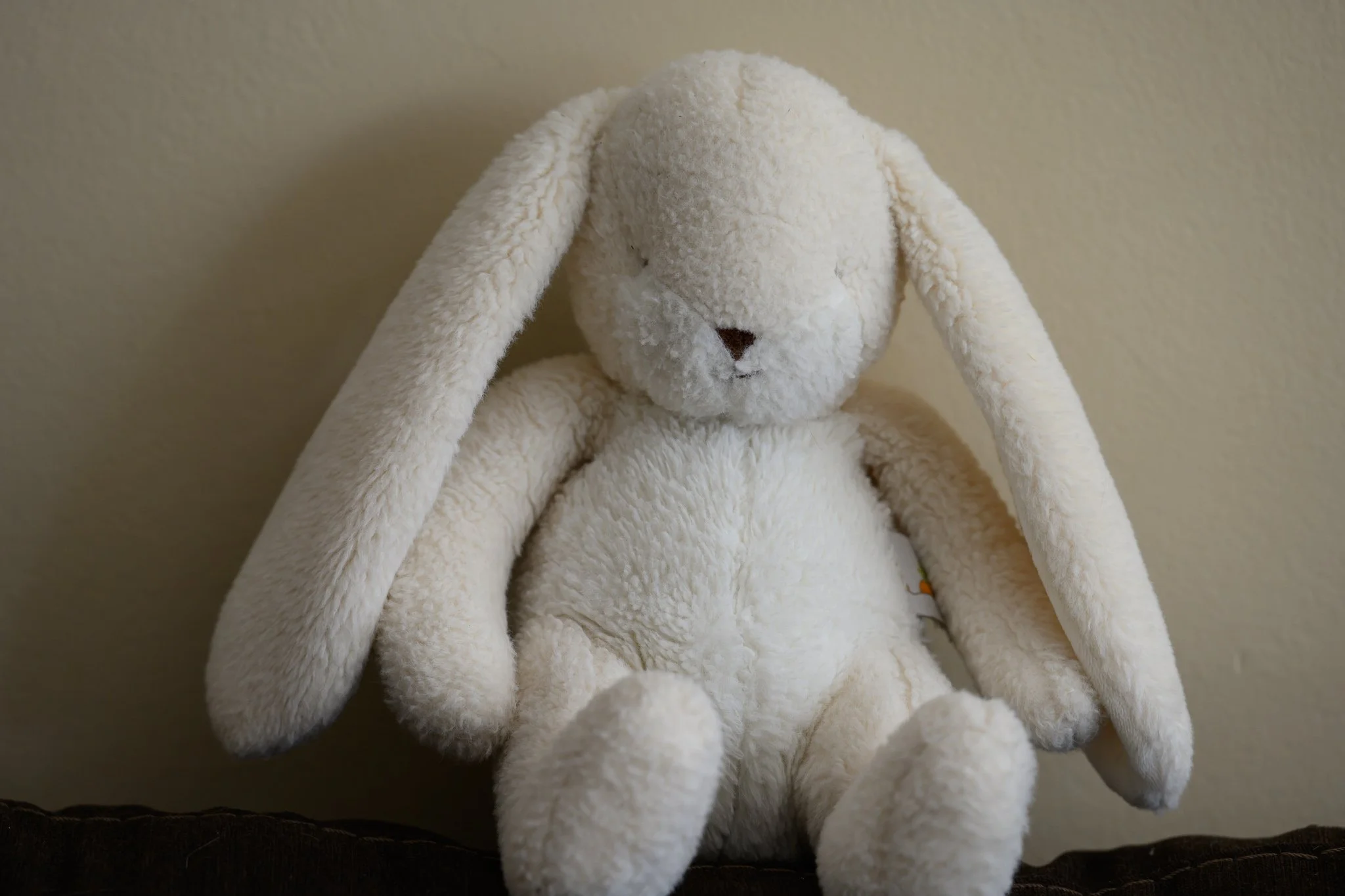
This is a white bunny against a cream/yellow background. In this image, my exposure is set to 0.
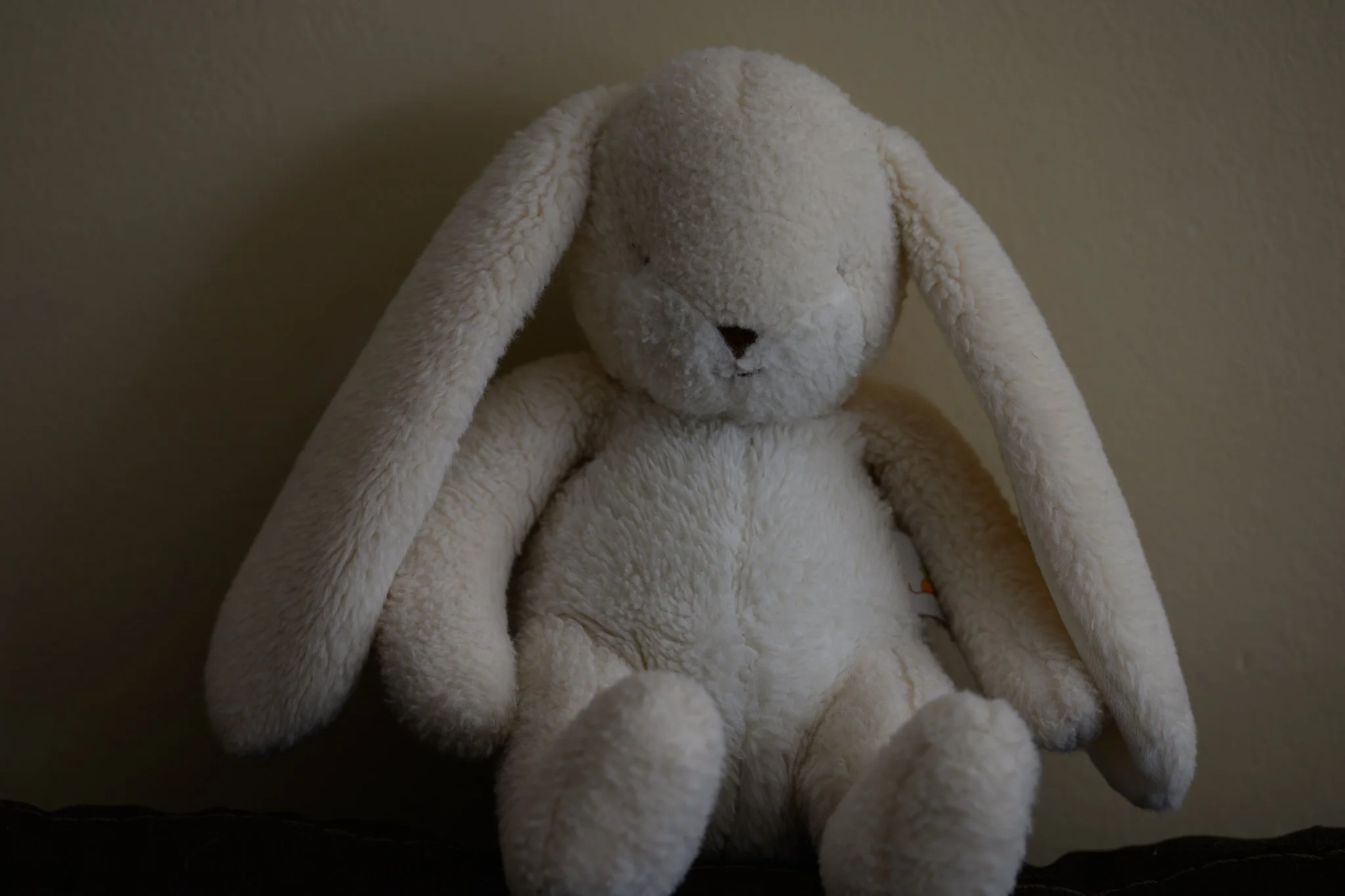
As you can see, the camera saw the white bunny, and wants to make it darker to get it closer to middle gray. Since the 0 always represents middle gray, the bunny is underexposed (too dark).
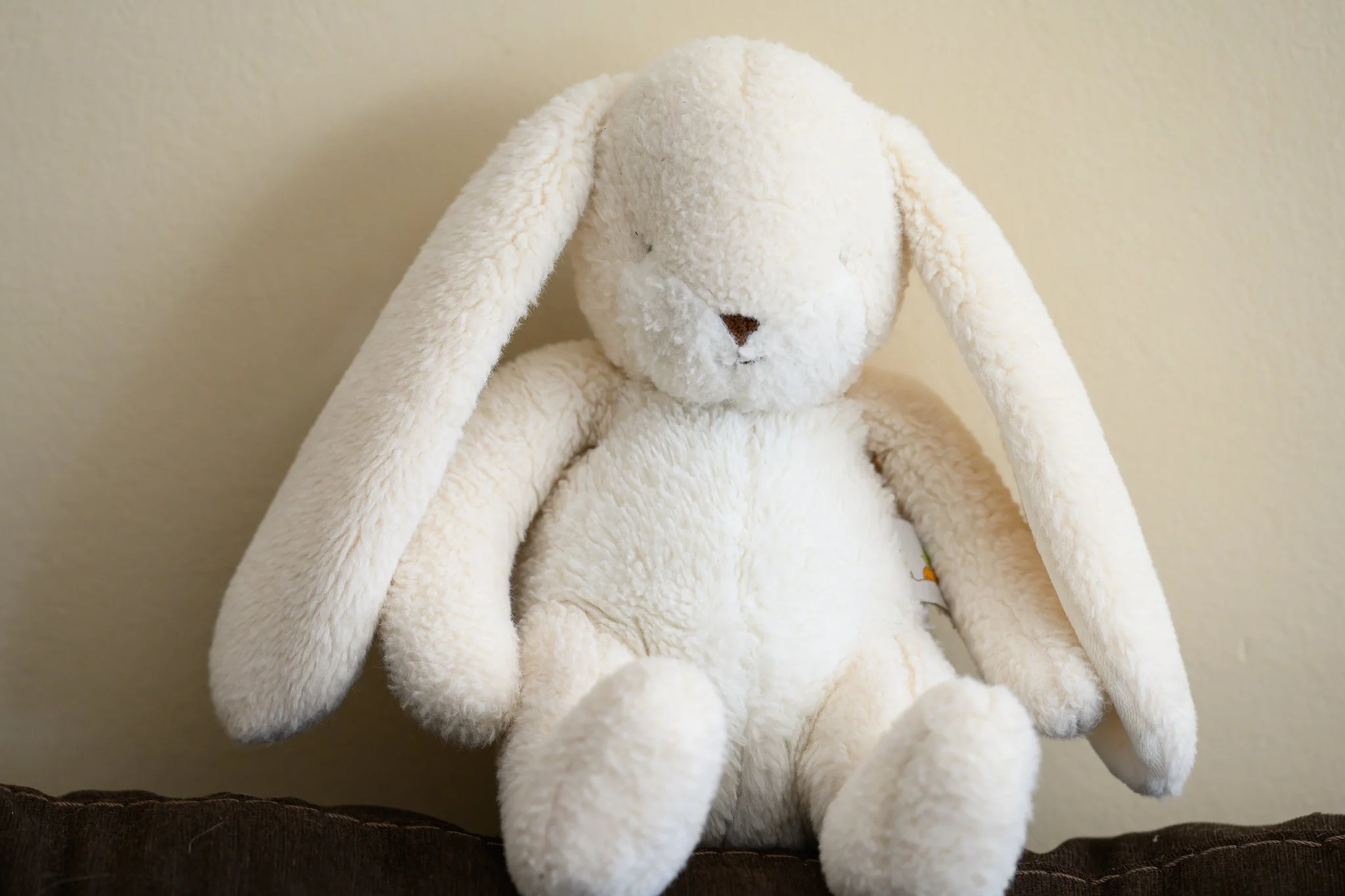
In this next image, I set my exposure to +1 on the light meter. Now, the image is brighter. The light meter is telling me that this white bunny is about one stop of light lighter than middle gray.
In the last image I’ve set my exposure to +2. Again, the camera is telling me that the bunny is lighter than middle gray (which of course he is, he’s white!) by about 2 stops of light.
How to Get It Right Every Time
Once you know that your camera is obsessed with middle gray, you can start to outsmart it.
Use a Gray Card: You can buy a cheap 18% gray card and meter off that. Since it’s already the color your camera wants, your meter will be dead-on.
Trust Your Eyes, Not Just the Bar: If you’re shooting something very bright, aim for +1 or +2. If you’re shooting something very dark, aim for -1.
Shoot in Manual: This is the big one! In Manual mode, you are the boss. The meter is just a suggestion.
Stop Fighting Your Camera
If you’re tired of playing a guessing game with that little light meter bar, I want to help you take the training wheels off. Inside my affordable trainings in The Camera Series, I teach you exactly how to read light before you even look at your meter. We move past the "0" and teach you how to dial in settings that match your creative vision, not just your camera’s math.
Needing to dive deeper? Check out…
The Lightroom Series for editing.
AI-Powered Hail Mary Masks for lightning fast, unmatched editing tools.
The Camera Series for comprehensive and affordable trainings suitable for beginner or intermediate photographers.
Nancy’s Recommended Gear and where she buys it used (reputable with warranties!)